Step 8: Registering the Application
When developing with React for the browser, we just need to define a mount point, call
React.render, and let React do its magic. In React Native, this is a little bit different.import React from ‘react';
import {View, Text, StyleSheet, TouchableOpacity, Alert, Platform} from ‘react-native';
class HelloThere extends React.Component {
clickMe() {
Alert.alert(Platform.select({
ios: ‘Welcome to iOS!',
android: ‘Welcome to Android!'
}));
}
render() {
return (
<View style={styles.container}>
    <TouchableOpacity onPress={this.clickMe.bind(this)}>
        <View style={styles.box}>
            <Text style={styles.message}>Hello {this.props.name}. Please click me.</Text>
        </View>
    </TouchableOpacity>
</View>
);
}
}
var styles = StyleSheet.create({
container: {
flex: 1,
justifyContent: 'flex-start',
alignItems: 'center'
},
box: {
borderColor: 'red',
backgroundColor: '#fff',
borderWidth: 1,
padding: 10,
width: 100,
height: 100
},
message: {
fontFamily: 'myCustomFont'
}
});
var MainComponent = function() {
this.render = function() {
return <HelloThere name="Component" />;
}
};
AppRegistry.registerComponent('MainComponent', function() {
return MainComponent;
});
We have to register the component for the Objective-C side of things, which is done using the
AppRegistry object. The name we give has to match with the name inside the Xcode project.
Our Hello World React Native application has significantly more lines of code than its web counterpart, but on the other hand, React Native takes separation of concerns a bit further, especially because styles are defined with the component.
As a side note, we shouldn’t rebind the
clickMe method to the this context in the render method, especially if our React (Native) application grows to be a bit more complex. It rebinds the method on every render call which can become quite a lot. The alternative is to bind the method inside the constructor.Running the Application
To run the application, we need to replace the contents of the
index.ios.js file with the piece of code of our transformed application from the last step. Then we just need to open the Xcode project and press the big Run button. First, a terminal will open with the React Native server, and then the simulator window will appear. The React Native server creates a bundle, which the native application will then fetch. This allows for a web development-like rapid development cycle, where changes will be reflected almost instantly in the simulator.
For Android, it’s enough to add the following to your
package.json file, under scripts:"android-linux": "react-native bundle --platform android --dev false --entry-file index.ios.js --bundle-output android/app/src/main/assets/index.android.bundle --assets-dest android/app/src/
main/res && react-native run-android"
And then run
npm run android-linux. Make sure the android/app/src/main/assets directory exists beforehand.
After the terminal has popped up, our application will then show up in the simulator. Pressing CMD+D will show a development menu. Clicking on the box will then show an alert. The iOS version:
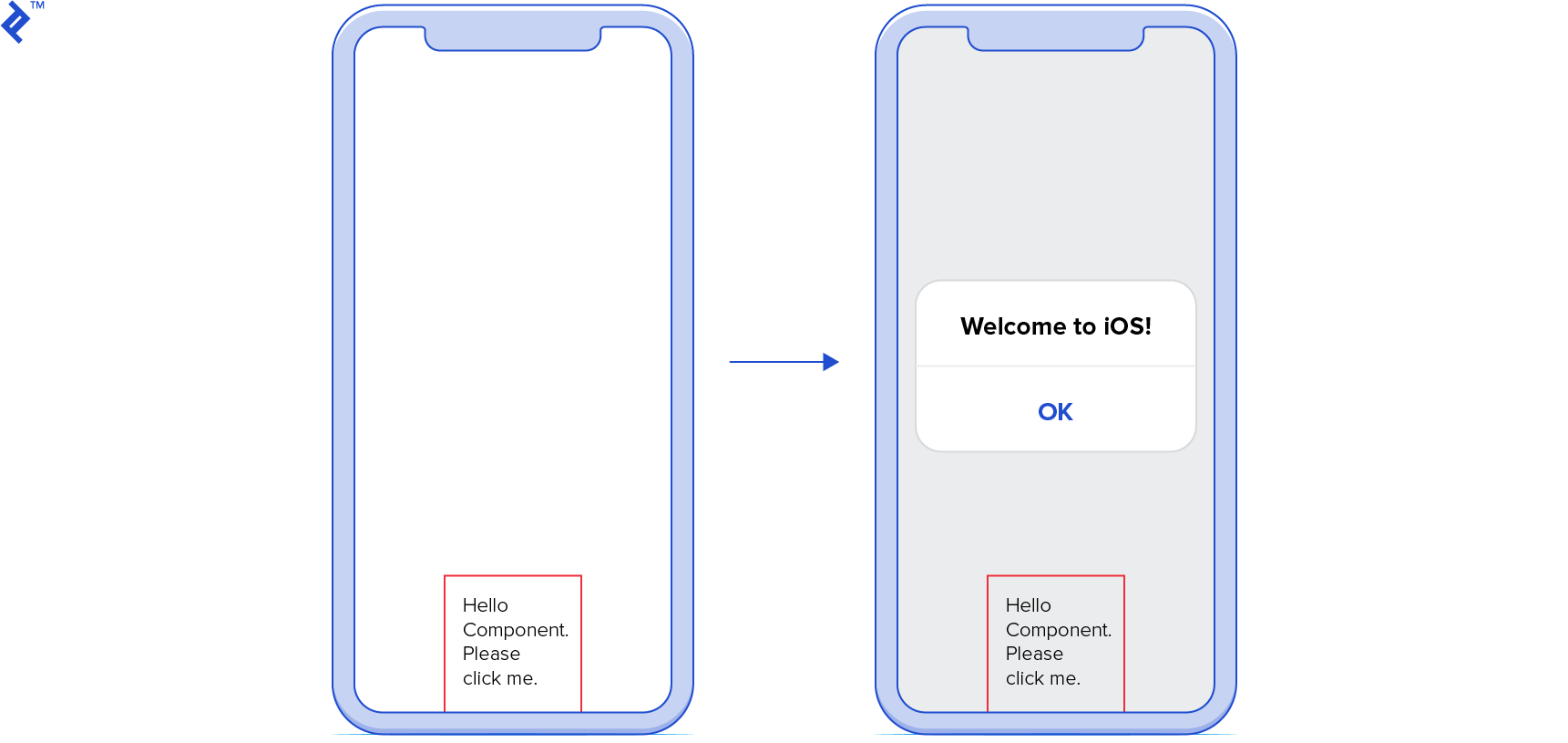
And Android renders something like this:

For distribution, having an application that points to a local development server would not be working out for us. For this reason, we can create the bundle for usage when the React Native server isn’t running with the command
react-native bundle. In that case, we need to update the didFinishLaunchingWithOptions method of AppDelegate to use the offline bundle.
This example application is also available on Github.
Working with React Native
Another thing worth mentioning is that we not only use React concepts and JavaScript for our mobile applications, but some of workflows web developers are used to are also available with React Native. When coming from web development, we are used to developer tools, inspecting elements, and live reloading.
The way React Native works is that it puts all of our JavaScript files in a bundle. This bundle is either served from a server or bundled together with the application. The first is incredibly useful for development in the Simulator, as we can enable live reloading. The developer menu React provides is by no means as mighty as the Chrome Developer Tools, but it provides a very web-like developer experience with live reloading and debugging with the Chrome (or Safari) developer/debugger tools.
Web developers are familiar with JSFiddle or JSBin, an online playground for quick web tests. There is a similar environment that allows us to try out React Native in a web browser.
React Native: A Solid, Modern Choice
I had originally suggested a more cautious approach to React Native. Today, it’s a mature and solid choice.
One of the big advantages with React is that it doesn’t impose on your workflow, since it just represents the view layer. Do you want to define your own Grunt pipeline? Or would you rather use Webpack? And will you use Backbone.js for your model needs? Or do you want go with plain JavaScript objects? Answers to all of these questions are totally up to you, because React does not put any restriction on these choices. As the official site had put it: “Since React makes no assumptions about the rest of your technology stack, it’s easy to try it out on a small feature in an existing project.”
To a certain degree, this is true for React Native as well. Mobile developers can integrate React Native as a part of their application, take advantage of the web-inspired development workflow, and choose to integrate the library on a larger scale if needs be.
In any case, one thing is certain: React Native isn’t going away. Facebook has a massive stake in it having multiple React Native-powered applications in app stores. The community around React Native is huge and continues to grow.
